
Using the Component Libraries Window
Once you save one or more components to a library, and create target coordinate systems in the
design where you intend to place the component, you can right-click the 3D component icon ( ) in the Project Manager
.
) in the Project Manager
.
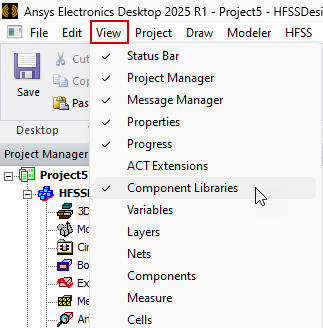
Toggle the visibility of the docked Component Libraries window from the menu bar by clicking View > Component Libraries and navigate the installed libraries from there. Visibility of the Component Libraries window is remembered for each design type so that, if context switches between different design types, the window is shown or hidden based on setting for new design type.
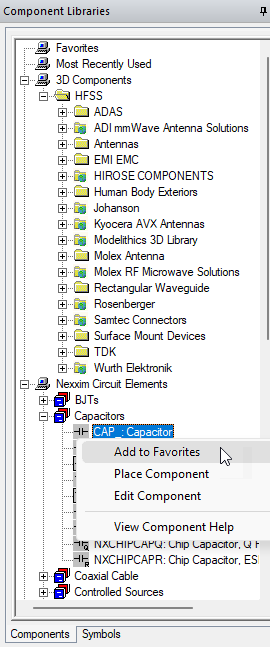
From the Component Libraries window, you can navigate the directory of installed components, as well as any in your Personal Library. The Component Libraries window lists all the 3D components available in syslib, UserLib and PersonalLib. It shows a folder corresponding to a library only if there are components for the active design type in that library folder. There are also additional optional folders for managing Favorites and Most Recently Used components. Component Libraries window contents, including Most Recently Used and Favorites correspond to the active design. When context is switched between different designs, the Component Libraries window will be refreshed so that it is relevant to the active design.
You can control whether to show the Favorites and Most Recently Used folders. Access the Options dialog box from the menu bar by clicking Tools > Options > General Options. The folder visibility options are on the General > Component Libraries Options page.
Right-click a component to view the Add to Favorites command for including frequently used components in the Favorites folder. Once a model is included in the Favorites folder, you can also right-click it to Remove from Favorites.
When you have added a component to a design, it also appears in the Most Recently Used folder.
You can select any component from the library, and drag and drop to insert it in the design. The component is inserted with default component parameter values and is placed in the currently active coordinate system.
Component file organization on the disk
3D Component files are organized in three libraries (that is, syslib, UserLib, and
PersonalLib). 3D component files must be in a 3DComponents folder under the appropriate library
location. Files must be further organized by design type in the 3DComponents folder. For example, component
files for